AI tricks going around on Instagram, YouTube and the rest of the internet — checked before they become a recommendation. Every tip comes with the steps, what the original video left out, and the date we tested it. When the promise doesn't hold, the tip stays up anyway, as a warning.
17
tips checked
5
checks out
8
with a caveat
4
doesn't check out
Platforms
Checks out, with a caveatvia Web
Harvard's AI course really is free — the certificate shown in the video costs $299
You can study CS50's artificial intelligence course without paying anything. But the paper with Harvard's name on it, which is what the videos show on screen, is a separate, paid product. Checks out with a caveat.
see how →
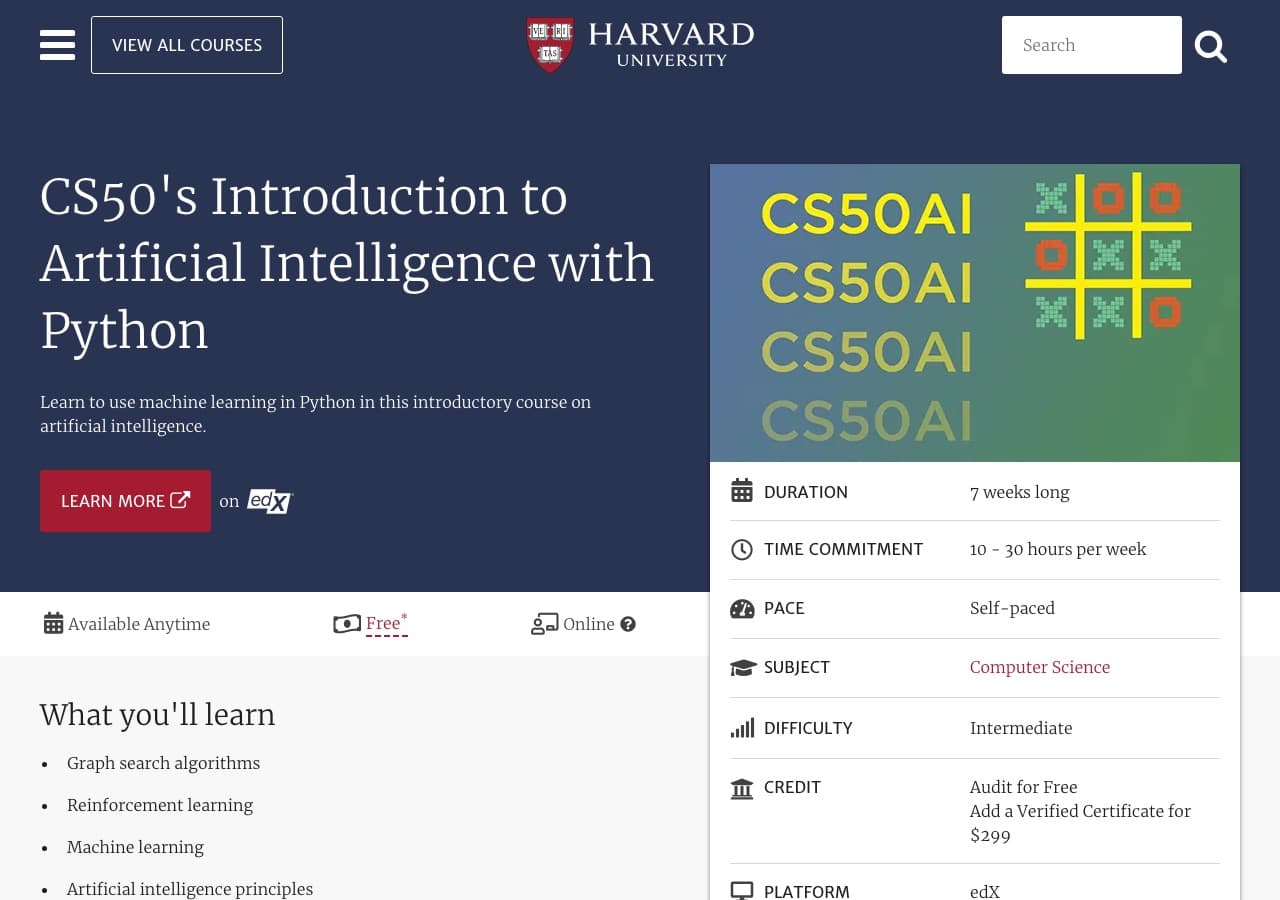
In the image: Harvard's own page writes "Free" with an asterisk, and the CREDIT line explains the asterisk: watching is free, the verified certificate costs $299. Screenshot from September 22, 2026.
Every so often a video shows up with the same promise: "Harvard is giving away a free artificial intelligence course, hurry, it's for a limited time." The good news is that the main part is true — and it's not for a limited time. The caveat is in what the video shows at the end, when the screen displays a certificate with Harvard's name on it.
How to do it
Go to cs50.harvard.edu/ai. This is the official page for CS50's Introduction to Artificial Intelligence with Python, the university's AI course.
Start watching. All the material — lectures, exercises and projects — is open, with no paid signup and no deadline.
The course is in English, with subtitles. It's a 7-week program, with an official estimate of 10 to 30 hours of study per week. It's self-paced: you go at your own speed.
If you want the verified certificate, you sign up at a different address, cs50.edx.org/ai, and that's where the charge comes in.
What the video doesn't tell you
Studying is free. The certificate costs $299.
On the course's official page in Harvard's catalog (pll.harvard.edu), the course appears as free to watch, and the Verified Certificate is listed at $299. CS50's own page separates the two things clearly: the material is open to anyone who wants to work through it on their own, and anyone who wants a certificate needs to sign up on edX, separately.
This changes the value of the tip depending on what you want:
If you want to learn, the tip is excellent and the video is right. This is material from one of the best universities in the world, open, with no credit card catch.
If you want the paper to put on LinkedIn, that is the $299 the university charges for verification. The certificate is the product; the course is not.
And there's a third path that sometimes gets confused with this one, in videos about "free Harvard": the Artificial Intelligence Graduate Certificate, from Harvard Extension School. This is a graduate program, with four courses, that costs $13,760. It has no connection to the open CS50 course — and if the video you saw was showing this name, the promise of it being free doesn't hold up.
When this matters
For content creators who want to understand what's behind AI tools, CS50's AI course is heavy: it teaches you to program in Python, not to use ChatGPT. If your goal is to operate tools, there's a shorter path.
Now, if you already work with code or want to build your own agents, this is the most solid free material out there today — and it's worth starting without paying anything and deciding about the certificate later, at the end of the seven weeks.
Sources for this verdict: the course page in Harvard's official catalog (pll.harvard.edu), the CS50 AI page (cs50.harvard.edu/ai) and the Harvard Extension School AI graduate certificate page (extension.harvard.edu).
Meta One charges for AI on Instagram and WhatsApp — but basic Meta AI use remains free
There are claims going around that Meta started charging for AI features in its apps. It's true that paid plans exist starting at US$ 2.99, but the official announcement says free access to Meta AI continues to exist — with limits.
see how →
Since September 15, 2026, videos have been circulating saying that "Meta started charging for AI" on Instagram, Facebook, and WhatsApp. The true part: Meta One exists and has paid plans. The part that disappears in the edit: basic use of Meta AI remains free.
The official source backing this verdict is Meta's own announcement about the Meta One lineup and its subscription tiers, published in the company's press room (about.fb.com/news). That's the text that describes the price ranges and, in the same paragraph, keeps free access in place.
What to do
Before subscribing to anything, open Meta AI inside the app you use most for work — Instagram, WhatsApp, or Facebook — and check whether you're hitting any usage limit. If you're not, you have no problem to solve.
If you are hitting one, go to the subscription screen inside the app itself (the Meta One flow appears in the account menu) and compare the tiers. The announced entry point is US$ 2.99; above it there are larger packages with more capacity.
If all you want is to generate more images or more text per day, test the free limit first for a normal week of work. That's the only way to know if the cap gets in your way.
The catch
What the subscription buys is capacity, not the right to use it. The official announcement keeps basic Meta AI functions available for free — with usage limits. The paid plans are for people who want higher access and greater capacity. Someone who posts one image a day probably won't notice a difference.
Second detail: the tier may not exist where you are yet. Meta announced the rollout in different markets on different dates, so the US$ 2.99 entry point shows up on some accounts before others — and the screen you see in a video may not be the screen you get.
Third: nothing in the announcement indicates Meta AI will stop being free later on. But there's also no promise that today's free limit is tomorrow's limit. Anyone building a production routine on top of the free plan is relying on a cap the company can change without notice — as it has done with other products.
This genuinely matters for people who use Meta AI at volume: an agency generating captions and image variations all day, a social media manager handling several accounts. There, the cap shows up fast and the US$ 2.99 pays for itself. For someone who posts a few times a week and uses AI to unstick a caption, the video pushing you to subscribe right now is selling urgency that doesn't exist. Open the app, use it normally, and only pay when the screen itself tells you you've hit the limit.
Viro's free plan really does have unlimited AI chat — but it comes with sponsored cards
Viro's promise of "every feature and unlimited chat on the free plan" holds up in the pricing table itself. What nobody mentions: Free shows sponsored cards, and removing ads means a paid subscription.
see how →
What to do
The claim going around is this: "Viro is free, has unlimited AI chat and unlocks every feature". I went to the official pricing table. It checks out.
Open the Plans & Pricing page in Viro's help center (help.viro.app/plans-pricing).
Look at the Free column. The listed price is US$ 0.
On the AI chat row, the value is Unlimited.
The page's own text describes the plan as "free, with unlimited AI chat and every feature".
In other words: to use the chat without counting messages and without a credit card, the free plan is enough. There's no hidden daily quota buried in the documentation, and no feature lock reserved for subscribers. This is different from what most AI apps do today, where free is a sample capped at a message limit.
The official source backing this verdict is Viro's pricing table, complemented by the ChatGPT and Gemini explanation pages inside the app, in the same help center.
The catch
The same page that promises "every feature" says, further down, that the Free plan shows small sponsored cards — sponsored cards inside the interface.
And removing those ads is exactly what the paid plans sell. The page lists two: Ad-free and Supercharged. Removing advertising isn't a subscription bonus, it's the subscription's product.
That's why "every feature" and "no catch" are not the same sentence. No feature is locked on the free plan. But the free experience includes an ad format that the documentation describes, and that the videos recommending the app don't mention.
For content creators, this changes one thing in particular: screen recording. If you make tutorials, tool reviews or process videos and use Viro on the free plan, the sponsored card ends up in your frame. You become free media for an advertiser you didn't even choose, inside your own video. Cutting it out in post-production takes work and sometimes ruins the framing.
The second detail is that the pricing page doesn't specify the frequency or placement of these cards — only the size, "small." How much this bothers you in daily use is something you only find out by using it.
When this matters
If your question is "can I use unlimited AI chat without paying?", the official answer is yes, and the tip checks out.
If your question is "can I use this in production, recording my screen, without anything showing up?", then no — the free plan doesn't work, and you land on one of the two subscriptions.
And if you only use the chat to write, summarize or brainstorm a script, off camera, the sponsored card is just visual noise and nothing more. In that case, the caveat doesn't change your decision.
Canva's AI doesn't all come with the subscription: AI Pass is billed separately, US$ 100 per person/month
It's going around that subscribing to Canva Pro unlocks the entire AI with no limit. Canva's own documentation shows a separate layer, AI Pass, with its own price and a monthly usage quota that varies by plan.
see how →
What to do
Before subscribing to anything thinking it will solve your content production with AI, check which layer you're actually talking about. There are two.
Open the Canva help center and look for AI Pass. That's the page that describes the product and the billing.
Inside Canva, go to Account → Plan and billing and check what's active on your account. Canva subscription and AI Pass show up as separate line items.
When using an AI tool in the editor, pay attention to the consumption notice. Canva tracks monthly usage, and the amount spent varies depending on the tool and the complexity of the task — it's not "one click, one credit."
Compare that against your actual monthly output before upgrading to a higher layer.
The official source behind all of this is Canva's own documentation on AI Pass, which states the price of US$ 100 per person per month and details the monthly quota system.
The catch
What the reel doesn't mention is that "AI included in the subscription" and "AI with no limit" are different things, and neither one describes Canva accurately.
Some AI features are indeed included in the plans — but with a quota. The official documentation describes different monthly limits for Free, Pro, and Business. People who make a living publishing content usually blow through that in the first week of a launch, when they generate dozens of cover and carousel variations.
The second point is uneven consumption. A heavy task doesn't cost the same as a light one. This means the math of "I have X generations per month" doesn't work: you have a balance, and it drains faster on video generation or complex editing than on a text tweak.
And the third: AI Pass is per person. On a team of three, the cost multiplies. It's not an add-on for the account, it's an add-on per seat.
When this matters
It matters if you're building a tool budget for the year, or deciding between Canva and a stack of separate apps. In that scenario, comparing the subscription price against the price of a standalone app is comparing the wrong thing — the AI layer is missing from the calculation.
It doesn't change anything if you use Canva to lay out, resize, and apply visual identity to a finished piece. That kind of use doesn't hit the quota and doesn't require any AI Pass. The tip here is simple: check the official page for what your quota covers before assuming everything is included.
The ChatGPT Business Premium plan gives 5x more usage — at US$ 125 per person, per month
A reel is going around claiming that all you need to do is upgrade your ChatGPT Business plan to unlock nearly unlimited usage. OpenAI's official page confirms the 5x and the removal of the 5-hour limit, but it also shows the price the video doesn't mention and the limits that remain in place.
see how →
What to do
The claim going around is this: "on ChatGPT Business, upgrade to Premium and unlock way more usage". The usage part checks out. Here's how:
Log into ChatGPT with the workspace account.
Click the workspace name, in the top corner, and go to Settings → Billing.
Under Plan, choose between Standard and Premium.
Set the cycle: monthly or annual. The annual one is cheaper per user.
Confirm the number of seats. Billing is per user, not per workspace.
What changes on Premium, according to the "ChatGPT Business - Overview" page, on OpenAI's help center: 5x more usage than Standard and no 5-hour limit.
The catch
The video stops at the word "unlock". The official source doesn't.
Premium costs US$ 125 per user/month on monthly billing, or US$ 100 per user/month on annual billing. For a team of three people, that's US$ 375 per month on the monthly plan. The reel promising "way more usage" rarely puts that number on screen.
Second: "5x more" isn't "unlimited". It's a multiple of a cap that still exists. You go from one limit to another, bigger one. At production peaks — a batch of scripts, a long transcription, several sessions open at once — you can still hit the new ceiling too.
Third: the official page itself mentions additional credits available within the workspace. If OpenAI sells extra credit, it's because Premium has a limit. Extra credits are a cost on top of the subscription, not part of it.
Fourth detail, and this one catches teams off guard: Business charges per seat. Editor, writer, intern — each person with a login is a full seat. There's no "light" user with a lower price.
When this matters
It matters if you're the only one on the team hitting the limit every day. In that case, the math can work out: US$ 100 on the annual plan for one seat costs less than losing two hours of production per week.
It changes nothing if the problem is something else. If you hit the limit once a month, Standard handles it. If the bottleneck is large file uploads or response time, upgrading doesn't address that — what changes on Premium is usage volume and the removal of the 5-hour window, not speed.
And it changes nothing if you're an individual creator. Business is a workspace plan, with a minimum of two seats. A solo creator is comparing the wrong thing: the math to run is against ChatGPT Plus, not against Standard.
The official source backing this verdict is the "ChatGPT Business - Overview" page, on OpenAI's help center — that's where the 5x, the absence of the 5-hour limit, and the two per-user prices are listed.
Free ChatGPT is "unlimited" only for everyday text — image, voice and upload have a cap
Reels say the Free plan became unlimited. OpenAI's official page says "unlimited everyday text chats" — and lists separate limits for image generation, advanced voice, uploads and search. Checks out only halfway.
see how →
A phrase is circulating in reels and short videos: "ChatGPT became unlimited for free, nobody needs to pay anymore." The true part: OpenAI itself writes, on the pricing page, that the Free plan includes unlimited everyday text chats. The part the video cuts out: that word applies to ordinary text conversation, and only that.
What to do
Go to chatgpt.com and log in with a free account.
Open your account menu, bottom left corner, and click Upgrade plan just to see the comparison — no need to buy anything.
Compare the Free column with Plus. It's the same table published at openai.com/pricing.
Confirm what actually changes in the help center, in the article Using ChatGPT's Free Tier FAQ (help.openai.com, article 9275245). That's where OpenAI describes what happens when you hit a limit.
When you hit a cap, ChatGPT itself shows a notice on screen and indicates when access returns. Write down the time — that's how you find out your real usage cycle.
The catch
Unlimited is an adjective for a single line in the table: everyday text.
OpenAI's documentation treats at least these as features with their own, separate limits: image generation, advanced voice mode, uploading files and images for analysis, and the heavier search functions. Each has its own counter. Hitting the image cap doesn't take down text, and vice versa — but the cap exists.
There's a second detail almost no video mentions: Free tier limits are not a fixed, published number. OpenAI describes them as varying according to demand and according to which model is serving you. When the limit for the most capable model runs out, the conversation continues — on a smaller model. You're not blocked, you're downgraded. For anyone writing scripts, this shows up as a drop in quality mid-work, with no red warning on screen.
And "text conversation" is literal. The moment you attach a briefing PDF, paste a screenshot for the model to read, or ask for a thumbnail, you've left the unlimited bucket and entered a counted one.
When this matters
It matters if your use is writing: captions, titles, scripts, rewrites, brainstorming topics. Then Free holds up all day and the reel's promise checks out.
Nothing changes — or it changes for the worse — if your workflow depends on images, file uploads or voice. In that case, the "unlimited" you saw isn't the feature you use, and canceling Plus because of the video will leave you stuck mid-production.
Official source for this verdict: OpenAI's pricing page (openai.com/pricing) and the article Using ChatGPT's Free Tier FAQ in OpenAI's help center.
Third-party AI training on YouTube already comes turned off — the video telling you to rush is wrong
A video is going around claiming YouTube turned on AI training on your channel without telling you. YouTube's own documentation says the opposite: the toggle starts unchecked. But it covers less than the name suggests.
see how →
What's going around
After the Twitch case — where Amazon's AI training toggle really
came turned on for everyone —, a batch of videos and reels appeared saying
YouTube did the same thing. The line is always similar: "go turn it off now,
it's on for your channel and you don't even know it".
What the documentation says
It isn't. YouTube's help center is literal:
By default, the third-party training setting is turned off.
You don't need to do anything. If you never touched it, it's unchecked.
Where to check with your own eyes
It's still worth opening — it takes a minute and lets you check whether
someone else with access to the channel changed it:
Open YouTube Studio.
Settings → Channel → Advanced settings.
Scroll to Third-party training.
The box "allow third-party companies to use my content to train AI
models" should be unchecked.
If you change anything, YouTube warns it can take up to seven days for
the change to take effect on the public interface.
The catch no video mentions
And it's the part that matters most: this toggle only applies to outside companies.
YouTube itself explains that third parties "are separate from YouTube/Google"
and that the company doesn't control what they do. In other words: use of your
content by Google itself isn't covered by that checkbox — that falls under
the Terms of Service, which you accepted when you published, and there's no
switch for it.
There's another detail in the fine print. If you ever decide to allow it,
there are two options: choose specific companies, or check "any third-party
company". The second one applies even to companies that aren't on the
list yet — it's a blank check for whoever joins later.
Why the confusion happened
Because Twitch did the opposite, and recently. On August 12, 2026 it
turned the toggle on for every channel at once, with no email and no warning.
People who saw that and heard "platform turned on AI training without
warning" generalized it to YouTube.
These are different cases. On Twitch, go turn it off — the
tip is here. On YouTube, just check
and move on.
On Twitch, AI training with your channel comes turned on — turn it off in 30 seconds
The option exists, it works, and it's hidden in Security and Privacy. The default is on, so anyone who never touched it is in.
see how →
What to do
Open the Creator Dashboard on Twitch.
Go to Settings → Security and Privacy.
Look for the option about using your channel content to train Amazon's
generative AI models.
Turn it off. It comes checked by default.
Why now
Twitch announced this toggle after the issue turned into a lawsuit: on August
20, 2026, a class action against Twitch and Amazon began alleging that
streams, VODs, clips, chat logs and channel images fed Amazon's video models
without a license and without payment.
It's worth reading the fine print of what the toggle does: it stops things
going forward. It doesn't undo anything that was already used.
The detail that catches most people
Chat is included. The collection covers chat logs, and it only takes one
person in that chat having consent turned on for the material to remain
usable. Turning off your toggle protects your channel, not your community.
And keep a screenshot of the screen after you turn it off, with the date. The
whole axis of the case against Twitch is the comparison between two versions
of a terms document — whoever has a record of what they accepted and when
they refused is in a different position.
Spending less on Claude Code: what Anthropic itself tells you to do (and what almost nobody does)
The official documentation says the average bill is $13 per workday, and it lists what brings that number down. The two biggest savings cost nothing: clearing the conversation between tasks and not leaving the more expensive model on all the time.
see how →
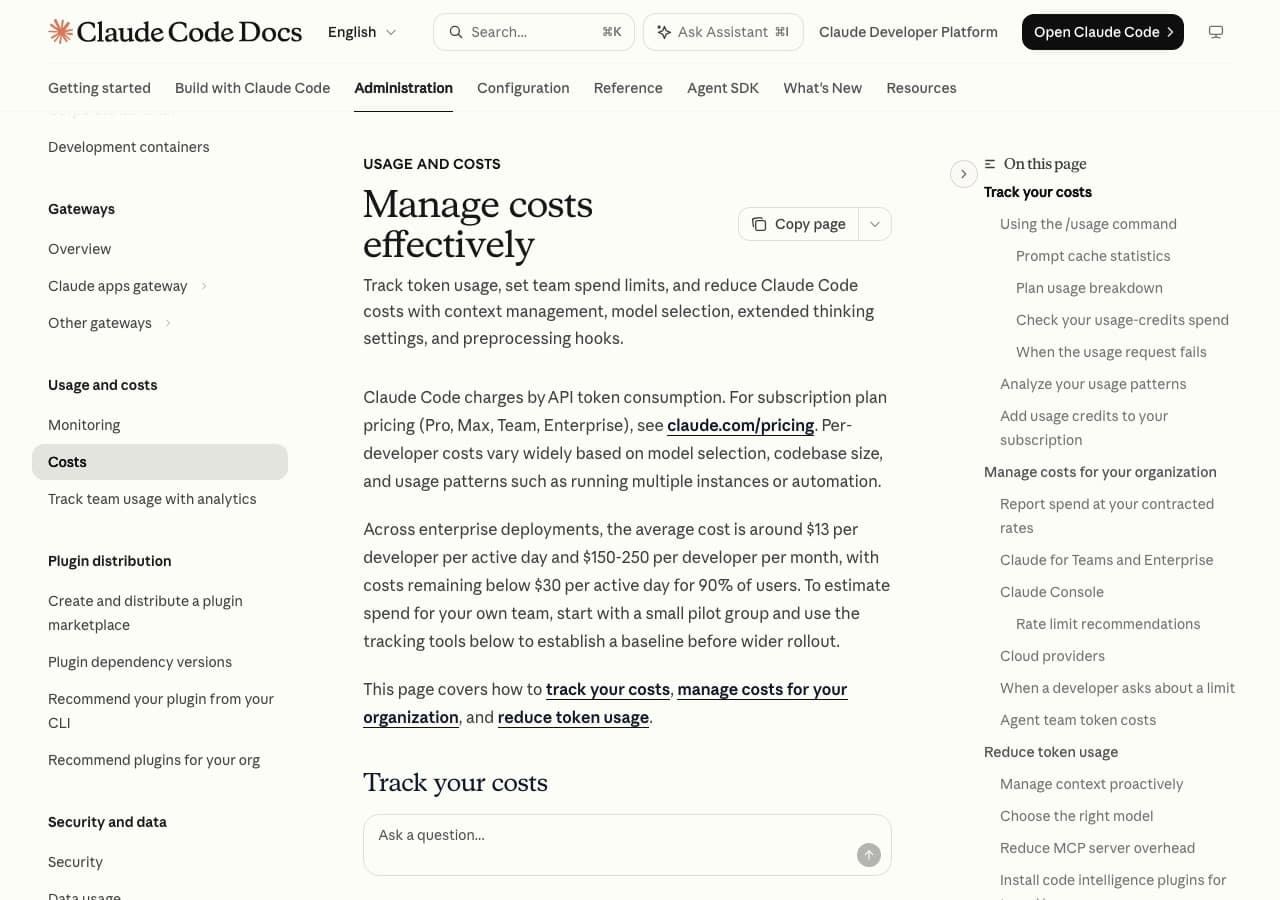
In the image: It's Anthropic's own documentation that gives the number: about $13 per developer per active day, and under $30 for 90% of users. Screenshot from September 22, 2026.
Every month a video shows up with a trick to "spend 90% fewer tokens." I went to check what Anthropic publishes in the official cost documentation, and the list there is more boring and more effective than most videos. Check it out — with the advantage of being written by the company that issues the bill.
The reference number the documentation gives: the average across companies is about $13 per developer per active day, and 90% of users stay under $30 per day.
How to do it
Clear the conversation between different tasks. Use /clear when switching subjects. This is the biggest saving, and the one almost nobody does: every new message resends the entire conversation, so a session left open since morning charges all day for a one-line question.
Don't leave the more expensive model as the default. Use /model and reserve Opus for architecture decisions. The documentation says Sonnet handles most of the coding work for less.
See where the spending is going./usage shows session consumption and /context shows what's taking up space right now.
Turn off what you're not using. Run /mcp and disable idle servers. And prefer command-line tools, like gh, that don't take up space listing tools.
Ask for specific things. "Improve this project" makes the model sweep through everything. "Add validation to the login function in auth.ts" gets solved by reading two files.
Use plan mode for big tasks. Shift+Tab before telling it to implement. It's cheaper to approve the path first than to redo all the work later.
What the video doesn't tell you
The biggest culprit isn't the size of the request, it's how long the window has been open.
The documentation explains why: every request carries the entire conversation. With caching, that history is billed at a lower rate — but it's still billed. And the cache has a shelf life: one hour on the subscription, and five minutes when you're already burning extra credit. In other words, coming back from lunch and sending a message reprocesses everything again, at full price.
Three other costs that run on their own, without you typing anything:
Scheduled tasks fire at their set interval even with the session idle, and each run sends the entire context.
Agent teams consume, according to the documentation, about 7 times more tokens than a regular session, because each agent has its own window. Each one keeps spending until it's shut down.
/compact isn't free. Compacting reads the entire conversation to summarize it, so it's a large request. When you don't need the continuity, /clear costs nothing.
One detail that matters if you carry instructions: the CLAUDE.md file enters the context at the start of every session. If it has detailed workflow instructions you only use once in a while, you pay for it even when working on something else. The official recommendation is to keep the file under 200 lines and move the rest to skills, which only load when called.
When this matters
If you use Claude Code on a subscription and have never hit the limit, this is just housekeeping. It matters when "you've reached the session limit" shows up in the middle of your work: that's when the difference between clearing and not clearing the conversation is the difference between continuing to work and waiting for the window to reset.
Source of this verdict: Anthropic's official documentation on managing Claude Code costs (code.claude.com/docs/en/costs), accessed September 22, 2026.
Turning off training in ChatGPT, Claude and Gemini takes two minutes — and in all three the conversation stays stored
All three ship with training turned on, and all three hide the off switch in a different menu. Turning it off blocks training, not storage: Claude can keep data for up to five years.
see how →
What to do
In all three, the setting comes turned on. Each one hides it in a different place:
ChatGPT
Profile photo → Settings → Data controls → turn off
"Improve the model for everyone".
Claude
Profile photo, at the bottom of the sidebar → Settings → Privacy
→ turn off "Help improve Claude".
GeminiSettings & help, at the bottom of the sidebar → Activity → turn off
"Keep activity".
The catch — and there are three
Turning off training doesn't delete anything. This is the most common confusion: the switch controls what the company can do with the conversation from now on, not what it has already stored.
In Claude, data can stay stored for up to five years even
with training turned off.
In Gemini, Google keeps storing conversations for 72 hours —
to be able to respond and for security.
In Gemini, turning it off costs you. The switch controls the entire activity, not just training. If you turn it off, you lose the conversation history — you can't go back to yesterday's conversation. In the other two, the history stays.
It only applies to the account you changed. If you use ChatGPT at work and at home with different logins, that's two separate settings.
When this actually matters
If you paste an unpublished script, a contract, a product idea or client data into the chat, those two minutes are worth it. If you use it to summarize public news, it changes little.
The Twitch case from August showed the pattern: the setting is usually born turned on, and it almost never comes with a warning. It's worth opening the privacy screen of any new tool that enters your routine — before pasting your own stuff into it.
Free ElevenLabs doesn't clear narration for monetized video — not even with credit in the title
A faceless-channel tutorial says to open a free ElevenLabs account, narrate, and monetize. The company's own help center says the free plan has no commercial license, and writing "elevenlabs.io" in the title doesn't fix that.
see how →
What's being said out there
The tutorial script is always the same: open a free ElevenLabs account, pick a voice, generate the narration, upload to YouTube and monetize. Some videos add a trick: "just put elevenlabs.io in the title and you're fine". The free account gets treated as a production plan, not as a trial.
What the documentation says
The source behind this verdict is ElevenLabs' official help center, in the article "Can I publish the content I generate on the platform?" (elevenlabs.io/docs/help-center/legal and help.elevenlabs.io).
The text is direct: the free plan does not include a commercial license and cannot be used for any commercial purpose. Commercial licensing starts with the paid plans.
Attribution is a separate requirement, not an alternative. Anyone publishing content generated on the free plan — or without being logged in — has to credit ElevenLabs by including "elevenlabs.io" or "11.ai" in the title. Eleven Music audio has its own rule: it needs to reference "Eleven Music" in the distribution. These are two obligations in the same article, and meeting one does not waive the other.
The help center says the same thing in other words: the free tier is for testing voices and generating a first Short; monetized content requires a commercial license.
What to do
If the video is going to be monetized, subscribe to at least Starter, at US$ 6/month through the official page elevenlabs.io/pricing.
Generate all narrations while the subscription is active. ElevenLabs' documentation states that audio generated during a paid plan retains commercial rights permanently, even after cancellation.
If you're going to use Eleven Music, cite "Eleven Music" in the distribution description, regardless of the plan.
Check your reset day: credits renew at the start of each billing cycle, which begins on the subscription date — not on the 1st.
The catch
The size of the free tier answers the question on its own. The official pricing page lists Free with 10,000 credits, Starter with 30,000 (US$ 6), Creator with 121,000 (US$ 22), Pro at US$ 99, Scale at US$ 299 and Business at US$ 990. Ten thousand credits give roughly ten minutes of audio. That doesn't cover an average YouTube video, let alone a week's worth of uploads.
Unused credits carry over for up to two months, capped at 3x the monthly quota. It's also worth reading the exception: paid plans grant a commercial license as long as you're not using Beta Services.
Anyone who followed the tutorial and has already uploaded monetized videos with audio from the free account is outside the terms — even after writing "elevenlabs.io" in the title.
Why the confusion happened
Because the attribution requirement really does exist, and it's in the same article. A lot of people read "credit ElevenLabs in the title" and understood that as the price of commercial use on the free tier. It isn't: it's the condition for publishing, and publishing is not the same as monetizing.
This matters if you make a living from an AI-narrated channel — in that case, Starter is an operating cost, not an optional subscription. If you only use ElevenLabs to test a voice before hiring a voice actor, the free tier works fine and nothing changes.
"Sora 2 free and unlimited with VPN": the app was shut down in April and the tutorial keeps circulating
Videos and blogs still teach you how to get an invite code and turn on a VPN to use Sora 2 without limits. OpenAI's Help Center says the app went offline on April 26, 2026. And there is a real deadline coming: the API disappears on September 24.
see how →
What's being said out there
The tutorial is always the same. Get an invite code on a Discord server, turn on a VPN pointing to the United States, create the account and generate video on Sora 2 for free and without limits — with a bonus tip on removing the watermark. Pages are still online with this title, and sites that list the "Sora 2 daily limit" keep getting indexed as if the product still existed.
It doesn't.
What the documentation says
The source backing this verdict is OpenAI's Help Center, in the article "What to know about the Sora discontinuation" (help.openai.com/en/articles/20001152). The text comes from the company itself and says two things:
the Sora web and app experiences were discontinued on April 26, 2026;
the Sora API will be discontinued on September 24, 2026.
The announcement came earlier, on March 24, 2026, on Sora's official account on X, and was reported by TechCrunch the same day.
In other words: this isn't a tutorial with a catch. It's a tutorial with no product on the other end. VPN doesn't solve anything because there's no server to access — there's no app, no free account, no invite code that works.
Why the confusion happened
Because Sora 2 was the topic in October and November 2025, and the rush for invite codes generated a mountain of content that performed well in search. That material was never updated. It keeps ranking, keeps being recommended, and whoever lands on it today thinks they're late for a party that's already over.
It's also worth noting that "unlimited" was never actually unlimited, not even when the app worked. On November 28, 2025, Bill Peebles, who leads Sora at OpenAI, announced on X a cut to 6 generations per day on the free plan — the previous cap was 30 per day. And back in October 2025, OpenAI was already selling packs of extra generations for US$ 4.
The deadline that is real
This is the point nobody is talking about, and it's the only one with real urgency.
Anyone who generated material on Sora and never downloaded it has until September 24, 2026, when the API goes offline. The data export process is described in the same OpenAI Help Center article cited above.
Go to help.openai.com/en/articles/20001152.
Follow the data export steps outlined in the article.
Save the files before the date.
If you never used Sora, none of this changes your day — just ignore the tutorial when it shows up in your feed. If you used it and left videos in there, the window is days, not months.
This reporting was done based only on official documentation, because testing it in practice is impossible: the product no longer exists.
"Google released Gemini and Veo 3 for free and unlimited" — it didn't
The video went viral in August. Both tools do have a real free plan, but with a daily cap. "Unlimited" is the wrong word.
see how →
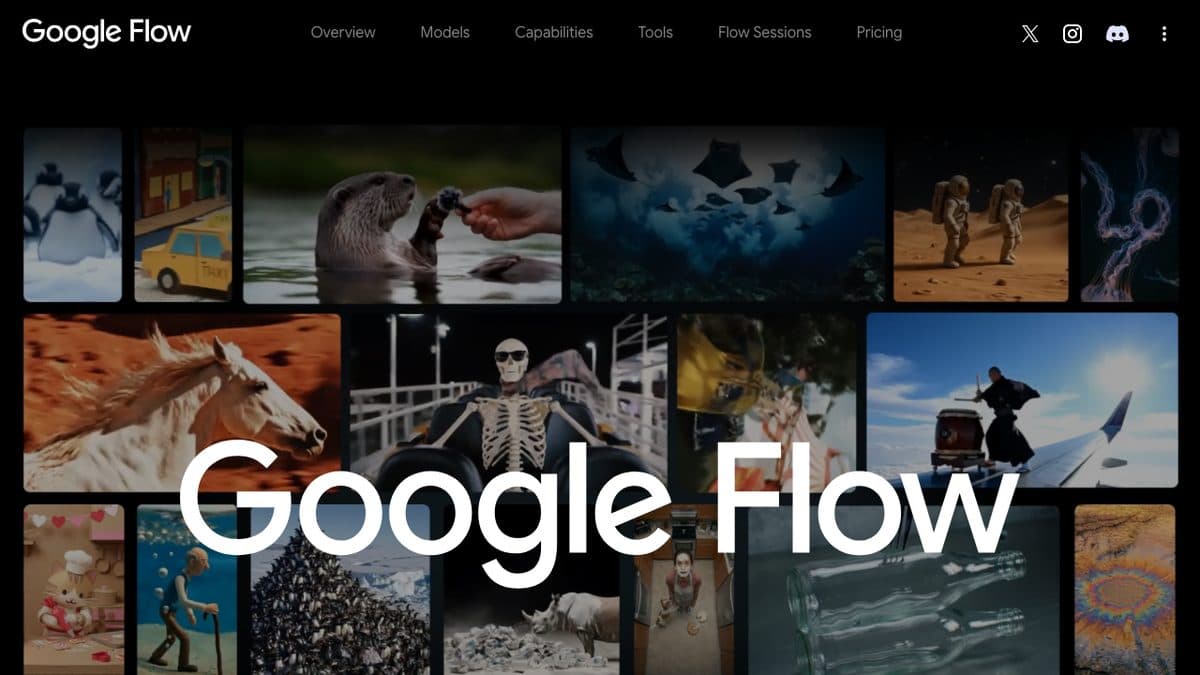
In the image: Google Flow page, captured on 08/26/2026. The tool is real and has a free plan — what doesn't exist is the "unlimited" from the video's title.
What the video promises
That Google released Gemini and Google Flow (with Veo 3) for free and unlimited use, and that all you need to do is download the apps on your phone.
What actually exists
The true part: both do have a free plan, and you can use them today without paying. The false part is "unlimited."
Google Flow / Veo: the free plan gives you 50 credits per day, and they don't accumulate — what's left over today doesn't carry over to tomorrow. In practice, that's about 2 to 5 short clips a day.
Gemini: the free app exists, with 15 GB and a smaller context window than the paid version.
The plan that unlocks both is Google AI Plus, at US$ 4.99/month — cheap, and probably the best price-to-result ratio for video today. But it's not zero.
Prices and limits checked by the editorial team on 08/15/2026.
Why this matters
This isn't nitpicking over a word. "Unlimited" changes the decision for whoever is watching: someone planning a daily channel built on generated video finds out about the cap on the second day, in the middle of production. A daily cap with no accumulation is a routine restriction, not a volume one — it sets how many videos per day you can actually make, and that number is small.
What to do with this
Use Flow's free plan for exactly what it's meant for: testing before subscribing. Five clips a day is enough to find out whether Veo delivers what you need. If it does, the US$ 4.99 of AI Plus takes care of it — and that's the number you should be running the math on from the start, not zero.
Runway's 125 free credits are one-time — they don't renew every month
Almost everyone reads it as a monthly quota. It's a welcome credit: once it's gone, it's gone. Good for a handful of clips.
see how →
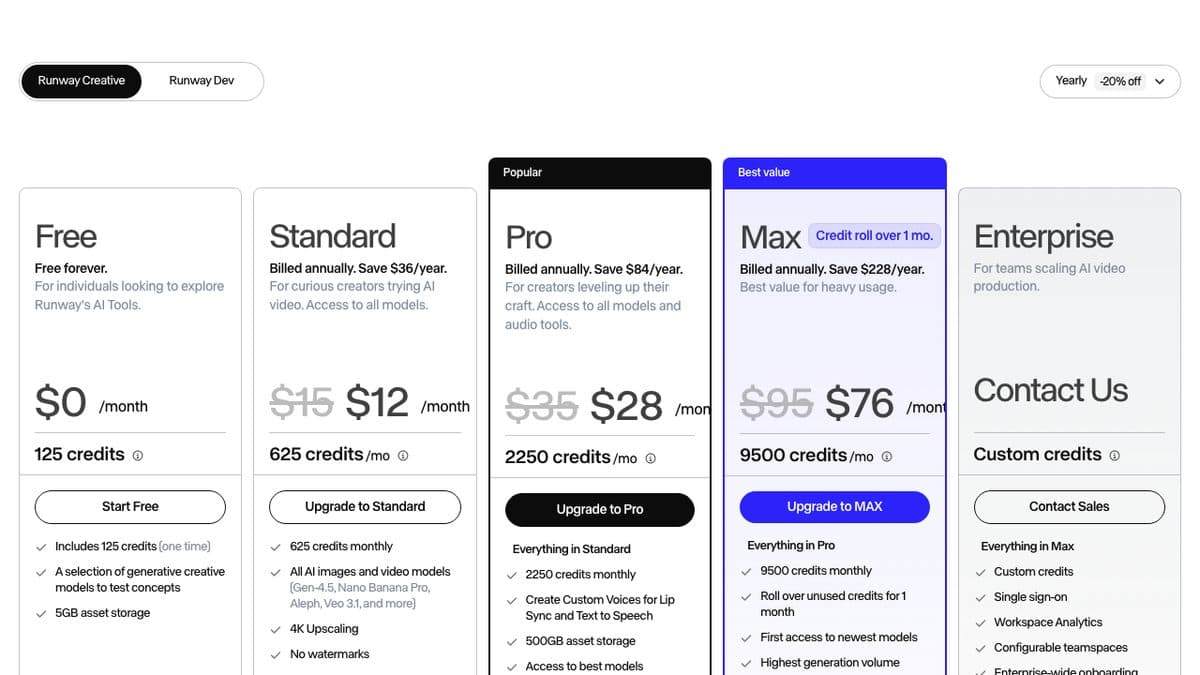
In the image: Runway pricing page, captured on 08/26/2026. Under the Free plan, in gray: "Includes 125 credits (one time)".
The common mistake
Runway advertises 125 credits on the free plan, and the natural reading is "125 per
month". It isn't. It's 125 one time only, when you create the account. Once they run out,
nothing comes back the following month.
What this changes in your planning
If you're comparing video generators by what you can do for free,
this difference flips the ranking:
Kling AI — 66 credits per day, which expire the same day. This is what
actually lets you test properly, over several consecutive days.
Pika — 80 credits per month, which renew. Output is 480p, with a watermark
and no commercial license.
Runway — 125 one time only.
Checked by our team on 08/15/2026.
What to do
Start with Kling if the goal is to learn the tool without paying: a daily quota is
what lets you make mistakes, adjust the prompt and try again tomorrow. Save Runway's 125
for when you already know what you want to generate — that's where they go further.
And keep an eye out: Runway's Unlimited plan was discontinued for new subscribers and
becomes Max on 09/01/2026. Unlimited Explore mode is over.
Checks out, with a caveatvia Instagram · @inventormiguel
An editor that cuts your pauses and your "um..." by itself — and runs in the browser
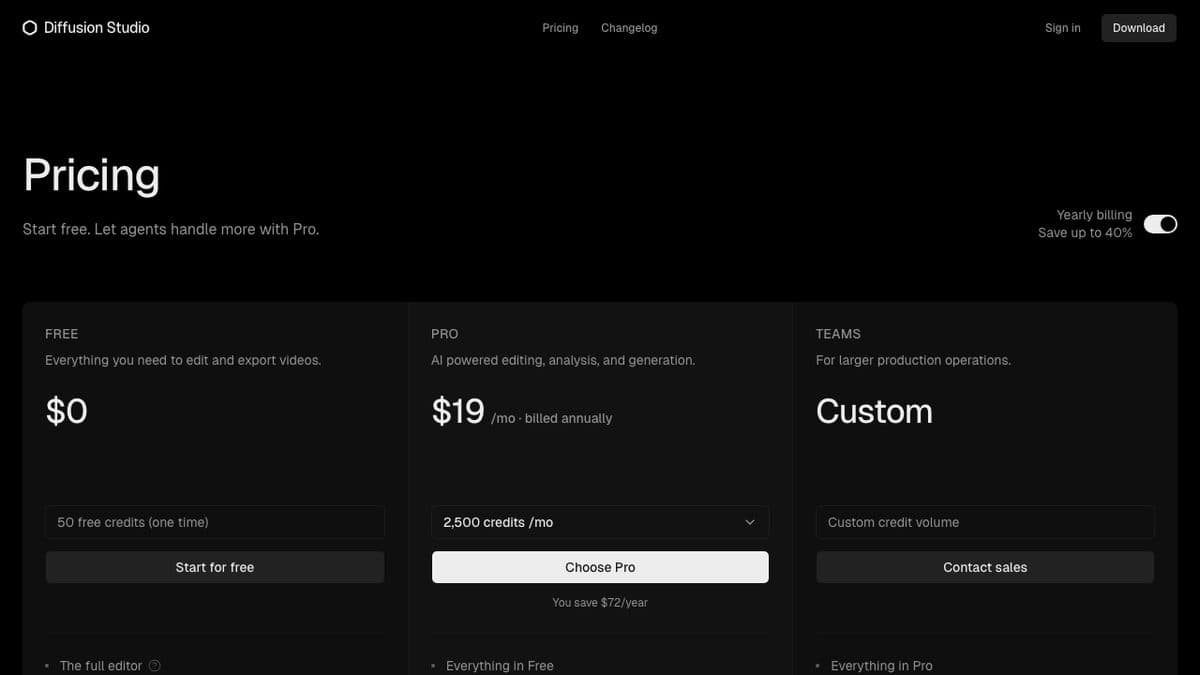
Diffusion Studio cleans up stutters and silence from talking-head video with no upload. The editor really is free; the AI part runs on credits.
see how →
In the image: The official pricing page, captured on 08/26/2026. The free plan says what the reel doesn't: 50 free credits (one time).
What the tip promises
You throw in the raw video, and the AI cuts out the pauses, the "um...", the repeated starts and the explanations that trip over themselves. What comes out is a ready rough cut, without you dragging anything on the timeline.
How to do it
Open diffusion.studio in your browser. Nothing to install, no account needed to try the editor.
Drag the file in. The video does not upload to any server — processing runs on your machine, via WebCodecs and WebGPU.
Run the automatic cut. It transcribes and flags silence, stuttering and filler words.
Adjust through the text: deleting a sentence in the transcript deletes that part of the video.
Export. Up to 4K, no watermark, on any plan — including the free one.
What the reel doesn't tell you
The reel says "free" and tells you to comment "AI" to get the link. Both things deserve an asterisk.
The editor really is free — and it's open source, under the MPL 2.0 license, with the code on GitHub. That's better than what the video sells. Unlimited export and commercial use are allowed on all plans, including the free one.
But the AI runs on credits. According to the official pricing page, the free plan gives 50 test credits — once, not per month. And it's exactly the reel's feature (understanding the audio, transcribing, cutting) that uses up credits. Once the credits run out, the editor keeps working; the automatic cut doesn't. The paid plan starts at US$ 19/month billed annually.
Two practical notes: you'll find "250 free credits" floating around out there — that was the old pricing table; the official site now says 50. And since processing is local, you need a machine with WebGPU (current Chrome or Edge). On a weak computer, a long video will lag.
Why it's still worth it
For talking-head video — lessons, reviews, talking head — cutting silence and stuttering is the most tedious part of editing and the one that eats up the most time. Even spending the 50 credits just on testing, you can gauge whether the workflow works for you before thinking about subscribing to anything. And "no upload" isn't a small detail: material you don't want on anyone's cloud never leaves your computer.
In music, the line is the lead voice: who sings determines whether it's "AI-assisted" or "AI-generated"
The standard Australia just adopted came from IFPI and is likely to become the norm. It's worth knowing which side your track falls on.
see how →
The standard, in one sentence
If the lead voice or the main instrument was generated by AI, the track is AI-Generated. If a human wrote the song and sang/played the lead part, and AI was added on top, it's AI-Assisted.
The three categories, in practice
AI-generated — out. AI produced the recording or the main part of the creative elements. Lead vocal or key instrumental performance made by AI puts the track here.
AI-assisted — in. Humans wrote and performed the lead vocal and main instruments. AI did something minor on top.
AI in production — in. AI mastering, drum machine, stem separation, autotune, reverb, an instrument patch that a person plays afterward.
Why this matters now
Australia has started applying this standard to the ARIA charts — a track fully generated by AI is left out of the charts and out of the award. The point for creators here isn't the Australian chart: it's that this standard isn't Australian. It comes from principles IFPI published in July 2026, and IFPI represents the recording industry worldwide — RIAA included.
In Australia, artists now have to declare AI use when submitting a track. And the declaration has teeth: if it later becomes clear the song was mostly generated, the chart position can be adjusted retroactively and the award can be reclaimed.
What to do with this
Know how to classify your own track before a form asks you to. The AI lead vocal is the cutoff point — it's the question that decides.
Note who did what, track by track. A retroactive declaration is defended with session records, not memory.
Use AI in production without worry. Mastering, stem separation, tuning — this is explicitly on the allowed side, and stays that way across all three versions of the rule.
If you generate a full track in Suno or Udio, understand it counts as AI-Generated under this classification. It works for video; for music charts and awards, it doesn't.
Suno music on the free plan can't monetize your video
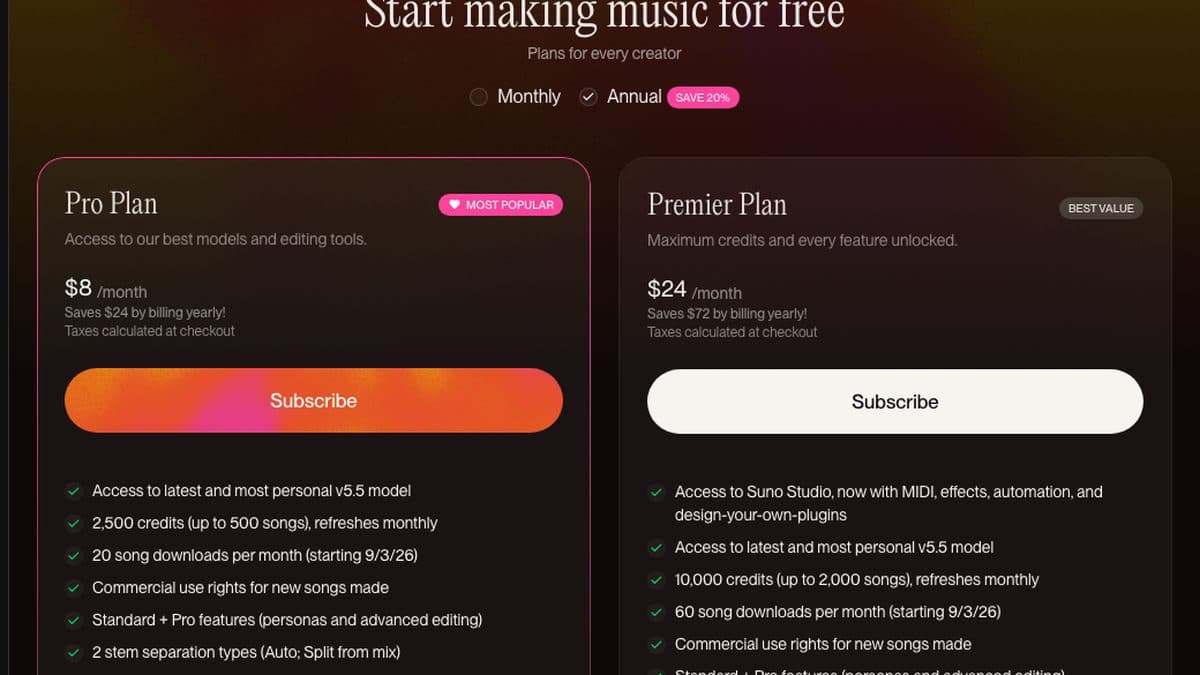
The free plan generates up to 10 songs a day and it's great. The catch is the commercial license only comes with the paid plan — and that's what decides if the video can earn money.
see how →
In the image: Suno pricing page, captured on 08/26/2026. "Commercial use rights" appears on the paid plans. Watch the selector: it's set to Annual — on monthly, Pro is US$ 10.
The confusion
Suno's free plan is generous: 50 credits per day, about 10 songs.
That makes a lot of people conclude the soundtrack is sorted and go use it in a
monetized video.
It's not sorted. The free plan does not include commercial rights. Monetizing
a video with a track generated on the free account is use outside the license —
and the problem doesn't show up right away, it shows up when the channel grows.
What to do
If the music goes into a video that generates revenue — AdSense, sponsorship,
client work — you need the paid plan, US$ 10/month (Pro).
If it's for testing, a rough draft of a track, or a video with no
monetization, the free plan works.
On Udio, the split is similar: free at 10 credits/day with a cap of 100
per month, paid starting at US$ 10/month.
Prices checked by the editorial team on 08/15/2026.
The cheap way to decide
Generate on the free plan until you find the right track. Only subscribe in the
month you're actually going to publish. A music generator subscription is one
of the easiest things to leave running by mistake — and the license that
matters is the one from the month of publication, not the month of testing.
Found a tip worth checking? Send the link. Everything here is verified first — prices, free-plan limits and commercial licenses change without notice, and that is where almost every viral tip gets it wrong.
Get the stories by email
What changes in AI for people who publish — sourced, and to the point.